

You’re on a long page. Maybe it’s a pricing page, product spec sheet, policy page, or support article. You know the word you need is there somewhere, but after a few scrolls, your eyes stop helping.
Users often still handle this the slow way. They skim, overshoot, scroll back up, then skim again. That works on a short page. On a crowded page with tabs, accordions, sticky navigation, and repeated headings, it’s a bad use of time.
How to search on a web page starts with one small habit: stop scanning manually and use the browser’s built-in find tool first. Once you’ve done that, the bigger question isn’t just how to find text faster. It’s also why some text can’t be found at all, and what to do next.
The End of Endless Scrolling
You open a long help page to find one answer. Maybe it is the refund policy, a shipping cutoff, or one API limit buried halfway down the page. Five minutes later, you are still scrolling past repeated headings, collapsed sections, and blocks of text that all start to look the same.
That is the point where manual scanning stops being useful.
The faster move is to search the page directly. A quick find gets you to the exact word or phrase instead of making you read the page in order. On dense pages, that small habit saves time every day and cuts a lot of avoidable frustration.
A practical rule helps here.
Search for the most distinctive word on the page, not the broadest one.
On a pricing page, searching for “plan” often gives you a mess of matches. “Enterprise,” “annual,” or a product tier name usually gets you closer to the right section on the first try. The same applies to documentation, policies, and support articles. Specific terms reduce noise.
There is also a bigger reason this matters. People who visit websites, whether they are customers or buyers evaluating a vendor, expect to find answers quickly. If a page is hard to search, they do not just lose time. They lose confidence in the site. For business owners, that is not just a usability issue. It affects whether visitors can reach pricing details, technical specs, return terms, or conversion pages without friction.
Some pages make this harder than it should be. Infinite scroll, lazy-loaded sections, tabs, accordions, and text rendered only after interaction can all interfere with in-page search. If Find seems to miss content you can clearly see later, the page is often loading that material dynamically instead of presenting it as plain text from the start. A technical explanation of how to scrape dynamic content shows why this happens. The short version is simple. If content is not fully present when the browser runs Find, it may not be searchable yet.
That is why good page search is partly a user skill and partly a site design choice. Browsers can only search what the page exposes clearly. Teams that care about findability usually also care about clean headings, logical page structure, and user experience design best practices that help both human readers and quick-search users get where they need to go.
Mastering the Universal Find Command on Desktops
On desktop browsers, the core move is almost always the same. Open the page. Press the shortcut. Type the term. Then jump through the matches until you land on the right one.
The shortcuts you’ll use most
| Browser | Windows/Linux Shortcut | macOS Shortcut |
|---|---|---|
| Chrome | Ctrl + F | Command + F |
| Firefox | Ctrl + F | Command + F |
| Safari | Ctrl + F | Command + F |
| Edge | Ctrl + F | Command + F |
That consistency is why browser Find becomes second nature once you use it for a few days.
How it works in practice
In Chrome, Firefox, and Edge, pressing the shortcut opens a small find bar near the top or bottom of the browser window. Type your term and the browser highlights each match on the current page. Use Enter or the up and down arrows next to the search box to move between matches.
In Safari, the process is similar. Press the shortcut, enter the word or phrase, and move through each highlighted result. Safari also tends to make the current match visually obvious, which helps on text-heavy pages.
A better workflow looks like this:
Start with a precise term
Product names, policy labels, section names, and error messages work better than generic words.Look at the match count
If there are too many hits, refine the word. Add a second term if the page supports it through its own search tool.Cycle through results quickly
Don’t read every paragraph around each hit. Jump first, read second.Change the term if the wording is off
Search fails often because the page uses a synonym. Try “billing” instead of “payment,” or “returns” instead of “refund.”
When Find looks broken, the wording is often the real problem.
What works and what doesn’t
Works well: long articles, documentation pages, knowledge base entries, policy pages, blog posts, and product pages with visible text.
Works poorly: pages that hide content inside collapsed sections, interfaces that load text after you interact, and pages where the phrase appears inside images rather than selectable text.
There’s also a simple mistake people make with repeated terms. They search for a common word and keep pressing Enter, hoping the right result will eventually appear. That usually wastes time. Replace the term instead. A more specific search cuts the number of jumps and lowers the chance that you’ll miss the useful section.
A small upgrade for faster searching
If the page has its own search bar, use that before browser Find when you’re looking for a category rather than a word. A practical search workflow is to start with the built-in search box, narrow with filters or facets, and refine further with Boolean operators or site constraints when the interface supports them. That mirrors how indexed search works behind the scenes, where terms are matched against stored content rather than scanned visually (search techniques guide from HIU Library).
Finding Text on Your Phone or Tablet
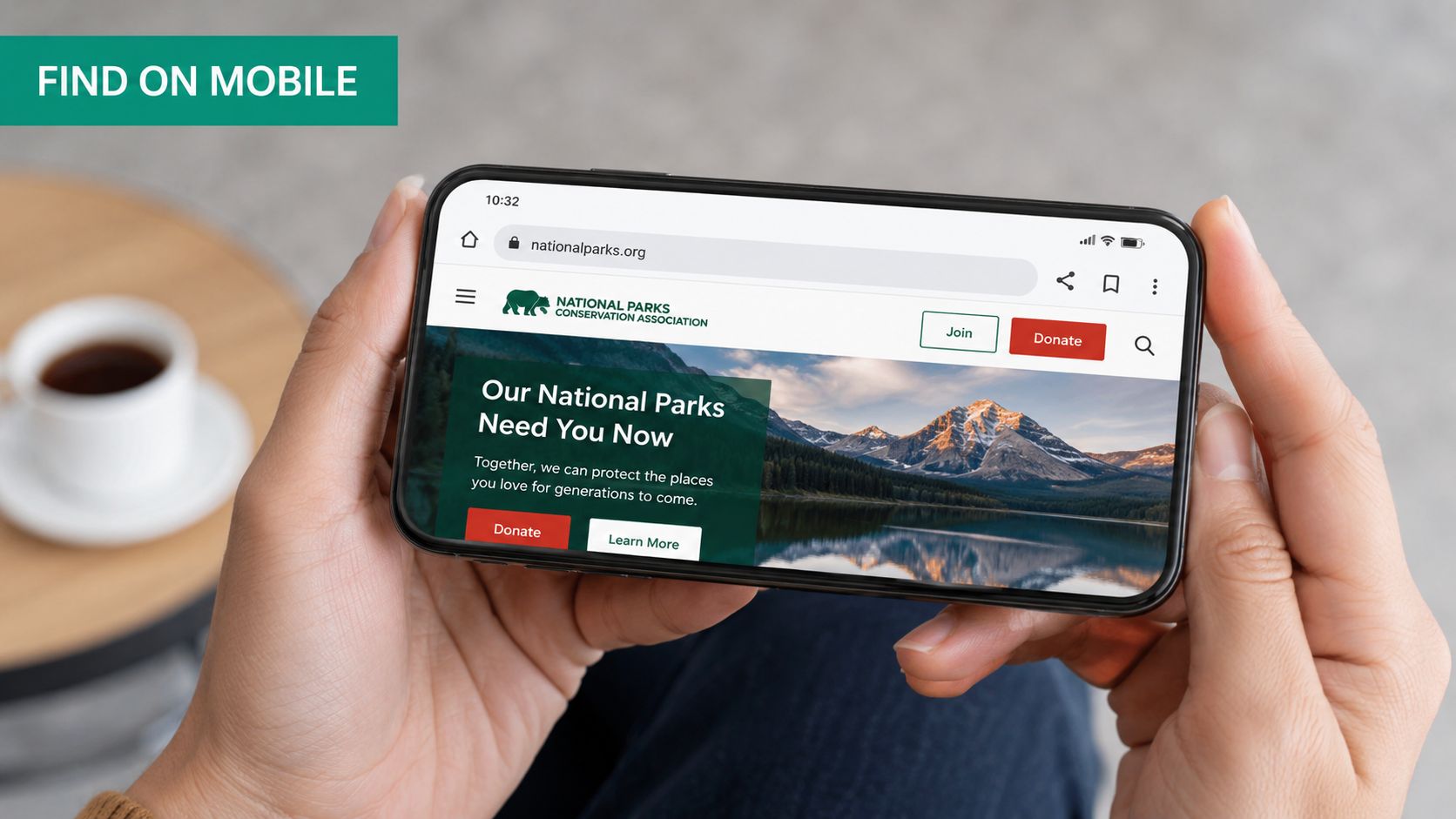
Mobile browsing makes people think page search is unavailable because there’s no keyboard shortcut sitting in front of them. The feature is still there. It’s just buried inside the browser menu.
On iPhone and iPad
In Safari, open the page, tap the share or menu controls, then choose Find on Page. Type your word and use the arrows to move through each match.
In Chrome on iOS, open the menu, look for Find in Page or Find on Page, then enter your search term. Chrome highlights matches and lets you jump through them one by one.
The exact placement can shift slightly between versions, but the feature name is usually obvious once you open the menu.
On Android
In Chrome for Android, tap the three-dot menu and choose Find in page. Type the term, and Chrome will highlight all visible matches on that page.
This works well for reading articles, checking documentation, or finding one detail inside a long product page without pinch-zooming and scrolling around.
Mobile habits that save time
A few habits make mobile page search much less annoying:
Use short, uncommon terms
Long phrases are harder to type accurately on a phone. A single distinctive word usually gets you there faster.Rotate the phone if highlights feel cramped
Horizontal orientation can make repeated hits easier to scan.Try a synonym quickly
On mobile, failed searches feel slower because menu actions take extra taps. Don’t keep forcing the same term.
If you can’t find a visible sentence on your phone, check whether the site loaded a shortened mobile version of the content.
That last point matters more than people expect. Some sites trim sections, hide tabs differently, or collapse content more aggressively on mobile. If a term isn’t appearing, the desktop page may expose more text than the mobile one does.
Advanced Page Search Techniques for Tough Cases
Browser Find handles the easy jobs. The harder jobs start when the text isn’t visible, isn’t indexed in the way you expect, or lives inside a file viewer instead of a normal page.
Search inside PDFs opened in the browser
Many reports, manuals, menus, and brochures open as PDFs in Chrome, Edge, Firefox, or Safari. You can still use the same shortcut, but you’re searching the PDF viewer’s text layer, not the web page around it.
That distinction matters. Some PDFs are text-based and searchable. Others are just scanned images. If the document is image-only, Find won’t help much because there isn’t selectable text to match.
Try this sequence:
Use the normal browser shortcut first
It often opens the PDF search field automatically.Test by selecting one line of text
If you can’t select text cleanly, the file may be image-based.Download and open the PDF in a dedicated reader if needed
Sometimes the browser viewer is fine. Sometimes a desktop PDF app gives you better search behavior.
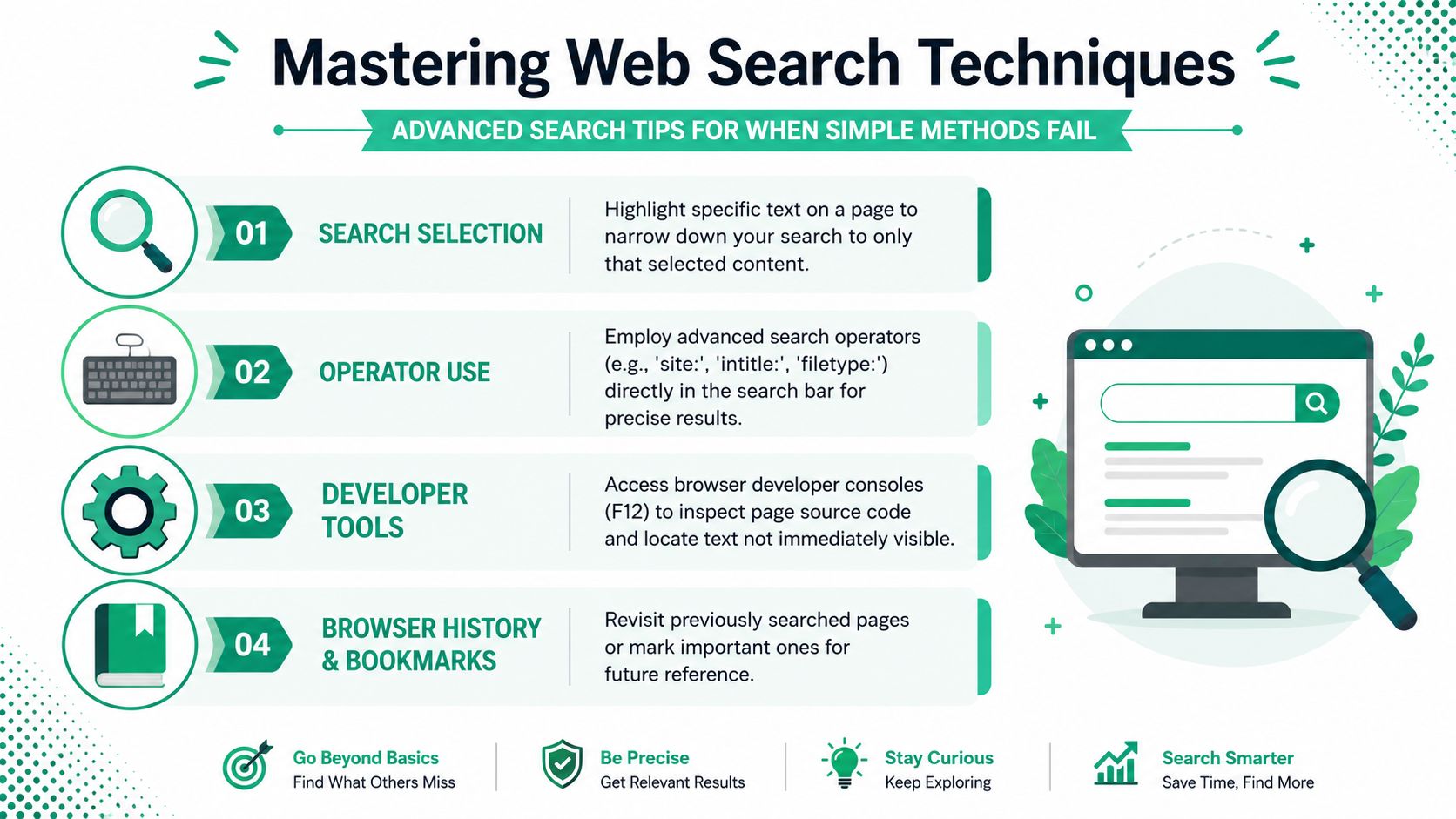
Check the page source and Developer Tools
Sometimes text exists in the page code but not in the visible layout. Other times, the visible layout is built after the page loads, which changes what Find can access.
Open Developer Tools in your browser, usually with F12 or through the browser menu. Then inspect the Elements panel or search the loaded HTML. This helps when you’re trying to answer questions like:
- Did the page load the text at all?
- Is the text hidden behind a tab or collapsed block?
- Is it a script building the content after the initial page render?
Technical explanations note that if pages aren’t indexed or content is generated by scripts or stored behind database logic, a simple page search won’t find it. In those cases, users may need site crawling, DOM inspection, sitemap review, or search-engine-specific techniques instead (SitePoint discussion of unindexed and dynamic content).
Recognize when Find is the wrong tool
Many people often lose time. They keep trying slightly different terms on a page that fails to expose the content in a searchable way.
A better test is to ask three questions:
- Is the text visible now, on this exact screen?
- Can I select it with the cursor?
- Does the page load more content only after scrolling or clicking?
If the answer to the first two is no, the standard Find probably won’t solve it.
Recover from zero-result searches
Modern site search interfaces often fail poorly. You type a reasonable query and get nothing useful back. The keyboard shortcut isn’t the primary issue. The issue is the mismatch between your wording and the site’s content model.
Nielsen Norman Group recommends that no-results pages explain the failure clearly, preserve the original query, and offer alternatives such as spelling corrections and rewrites (guidance on no-results search pages). As a user, you can apply the same logic manually:
- Shorten the query if the site search is too literal.
- Swap to a close synonym when product or support language is specialized.
- Remove punctuation or model numbers if the search tool handles them badly.
Searching an Entire Website, Not Just a Page
Sometimes the information isn’t on the page you have open. You know it exists somewhere on the site, but not where. That’s when you stop doing page search and move up one level.
Use the site’s own search first
A good internal search box can beat browser Find because it searches the site’s indexed content, not just the current page. Start broad, then narrow with filters if they exist.
Useful patterns include:
Searching by topic first
Try “returns policy” instead of just “returns.”Filtering by content type
On some sites, documentation, blog posts, support pages, and products are separated.Keeping the original term visible
If the site search loses your query after a failed search, the tool is fighting you.
There’s a reason this approach works. The practical search workflow described in library search training is to start with the page or site search box, narrow using filters or facets, then refine with Boolean logic or site constraints where available. That follows the basic logic of indexed search systems rather than visual scanning.
Use Google with the site operator
When a website’s internal search is weak, Google often does a better job. Use the site: operator followed by the domain and your query.
Examples:
site:example.com refund policysite:example.com pricing enterprisesite:example.com filetype:pdf onboarding
This is often the fastest method for older websites, large content libraries, or e-commerce sites with inconsistent internal search.
Google’s site operator works best when you pair the domain with the exact language the site is likely to use.
For businesses trying to improve discoverability across their own domain, stronger structure and clearer organic visibility support both internal search and external search. A practical overview of that overlap appears in this guide on increasing organic traffic.
For Business Owners, Make Your Website Search-Friendly
A customer lands on your site with a specific question. They want pricing, a return window, setup instructions, or a product spec. If they cannot find it in a few seconds with Ctrl+F, your menus, or your site search, they will not keep hunting for long. They leave, and the loss is usually invisible unless you watch session recordings or support tickets closely.
That is why page search habits matter to business owners. The same shortcuts people use to search any web page also expose a weak structure on your own site. If visitors must guess your wording, open five tabs, or scan giant text blocks to confirm one detail, the content is technically there but practically hard to find.
What should site owners change?
The fixes are usually editorial first, technical second.
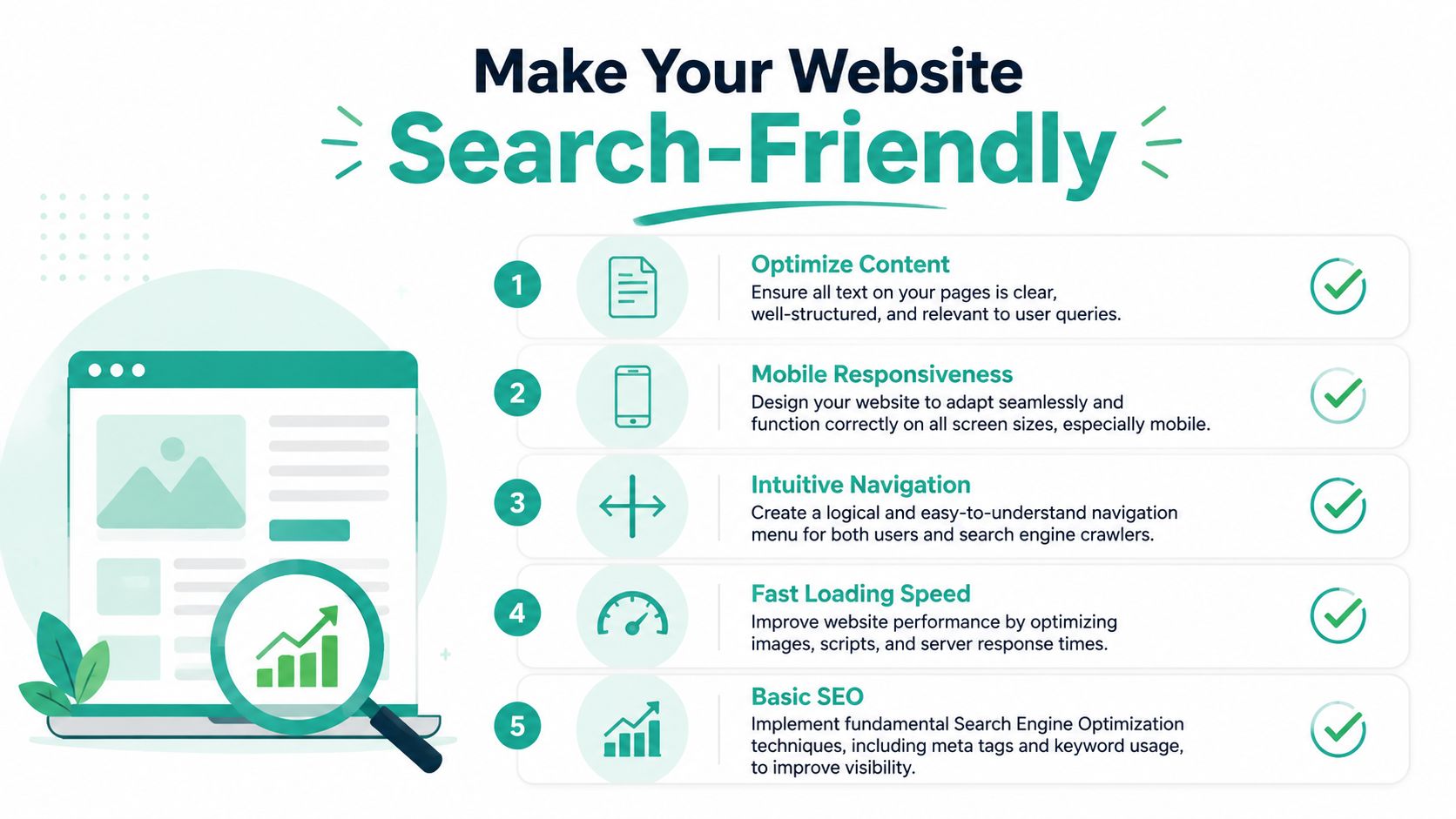
Write headings the visitor would search for
Clear labels like “Pricing,” “Shipping,” “Returns,” “Compatibility,” and “Integrations” beat internal brand language.Put key information in plain HTML text
If the important answer only exists inside an image, accordion, slider, or tab that loads awkwardly, it is harder to find with browser search, internal search, and search engines.Match customer vocabulary
A company may say “client enablement.” A buyer often searches for “onboarding,” “setup,” or “training.”Use an internal search that helps people recover
Good site search keeps the query visible, handles close matches, and offers useful results even when wording is imperfect.Break up long pages with meaningful subheadings
This helps visitors use in-page find more effectively and makes scanning faster on mobile.
A simple test works well. Open your own pages and search for the exact phrases a customer would use before buying, troubleshooting, or contacting sales. If the answer does not appear quickly, the page needs work.
Accessibility and searchability support each other
Pages that are easier to search are often easier to use overall. Clear heading levels, descriptive links, visible form labels, and logical reading order help people scan the page and help browsers, assistive tools, and crawlers interpret the content correctly.
That overlap has business value, not just compliance value. This explanation of web accessibility and its impact on business websites shows how usability decisions affect findability, engagement, and trust.
E-commerce teams have extra search friction
Catalogs create a harder version of the same problem. Product names vary. Filters hide important attributes. Color, size, and model variants split the wording customers use. If your collection pages call something “performance fleece” but shoppers search for “quarter zip pullover,” both page search and site search become less useful.
For Shopify stores, tooling choices can improve this or make it worse. A careful review of apps can help you choose search and optimization support that fits your catalog structure. This Shopify SEO apps buyer’s guide is useful if you are comparing options that affect discoverability and on-site search behavior.
A searchable site shortens the path from question to decision.
If your website makes visitors work too hard to find answers, Ascendly Marketing can help you tighten structure, improve usability, and build pages that are easier to search, scan, and move through.